Java vs Bedrock Edition: Which to Choose for World Downloads
If you are downloading a custom Minecraft world — whether it is a real-world map from Map2Minecraft, an adventure map, or a friend's survival build — one of the first decisions you face is which edition to use. Minecraft Java Edition and Bedrock Edition are fundamentally different versions of the game, and they handle world files differently. Here is everything you need to know to make the right choice.
The Key Differences at a Glance
Before we dive into the details, here is a quick comparison table of what matters most for world downloads:
- Java Edition: Windows, macOS, Linux. World format: Anvil (folder with region files). File type for downloads:
.zip. Mod support: extensive (Forge, Fabric). Spectator mode: yes. Typical audience: PC gamers, modders, technical players. - Bedrock Edition: Windows 10/11, Xbox, PlayStation, Switch, iOS, Android. World format: LevelDB. File type for downloads:
.mcworld. Mod support: limited (add-ons, behavior packs). Spectator mode: limited. Typical audience: console players, mobile players, cross-platform groups.
Platform Availability
This is the most straightforward factor. If you play on a console or mobile device, you need Bedrock Edition — Java is not available on those platforms. If you play on a PC, you have a genuine choice, as both editions run on Windows, and Java also runs on macOS and Linux.
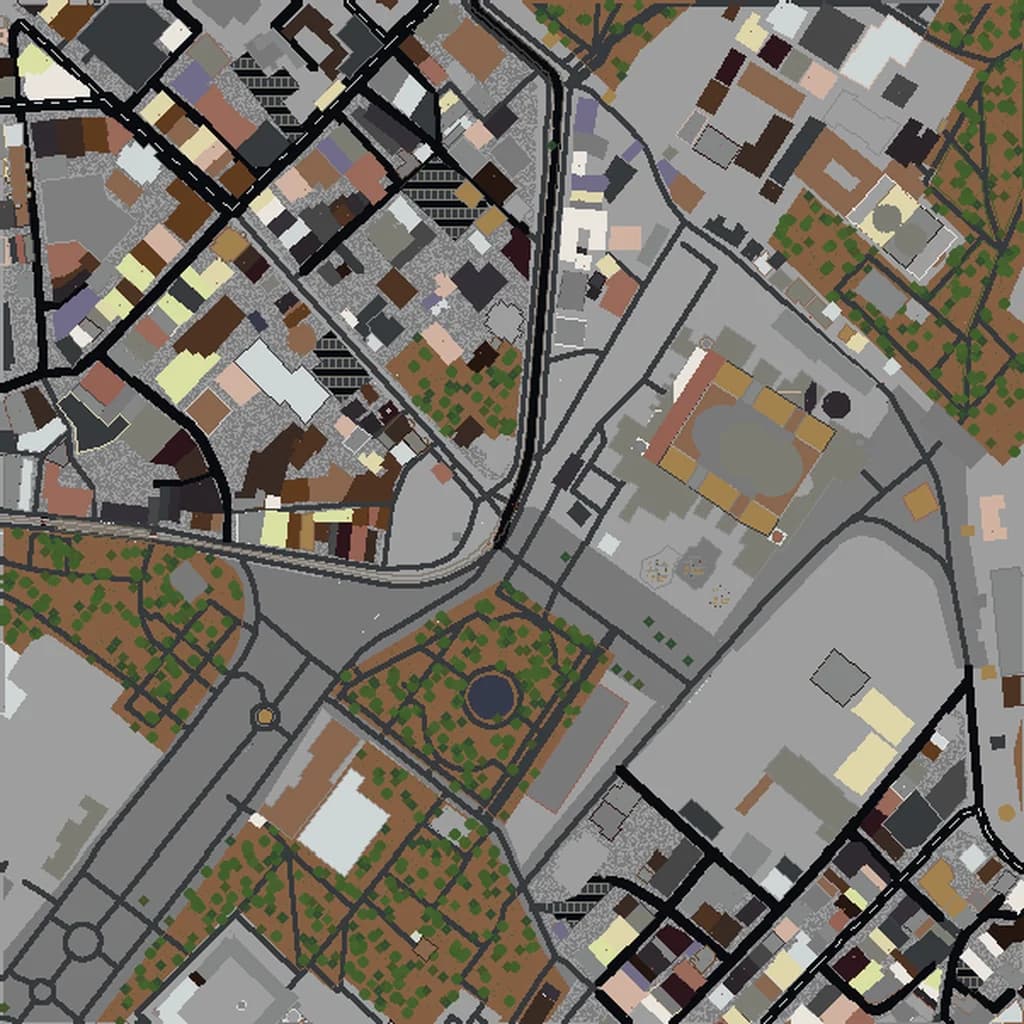
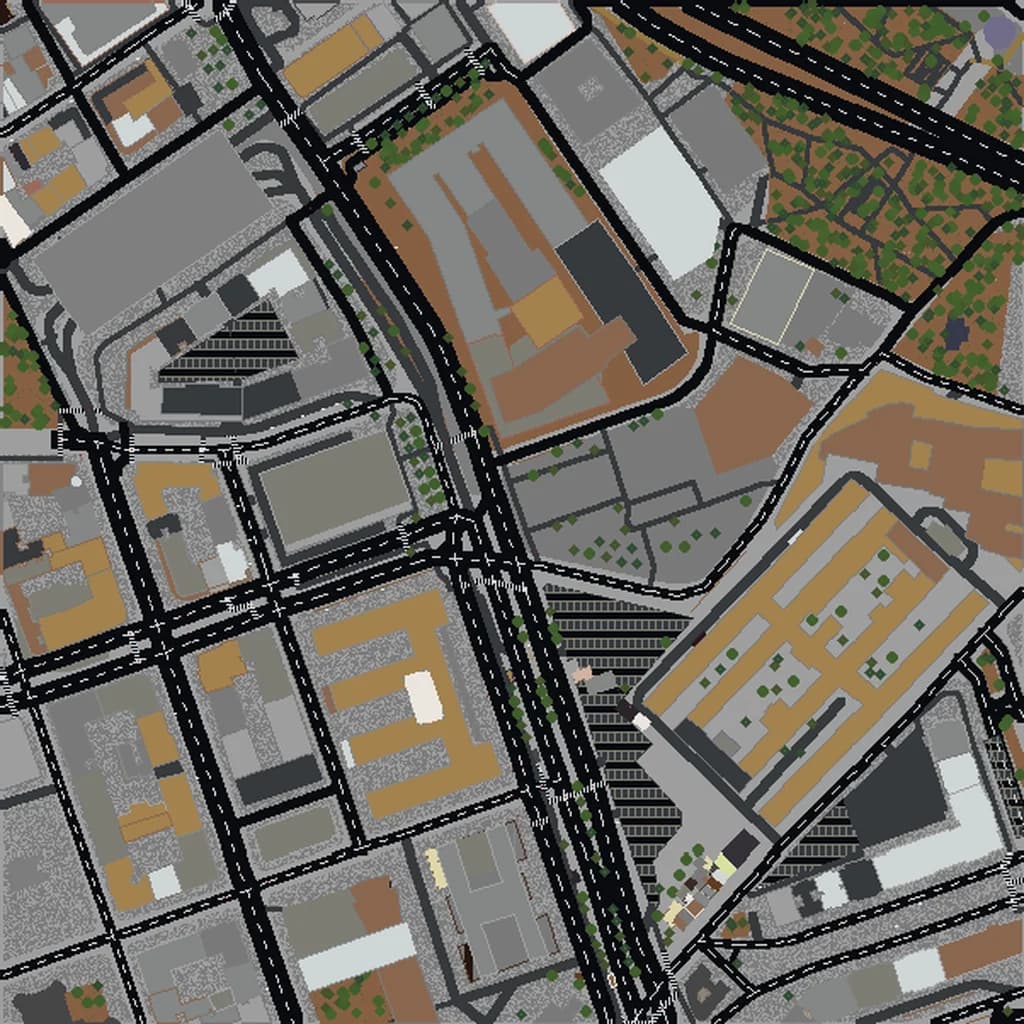
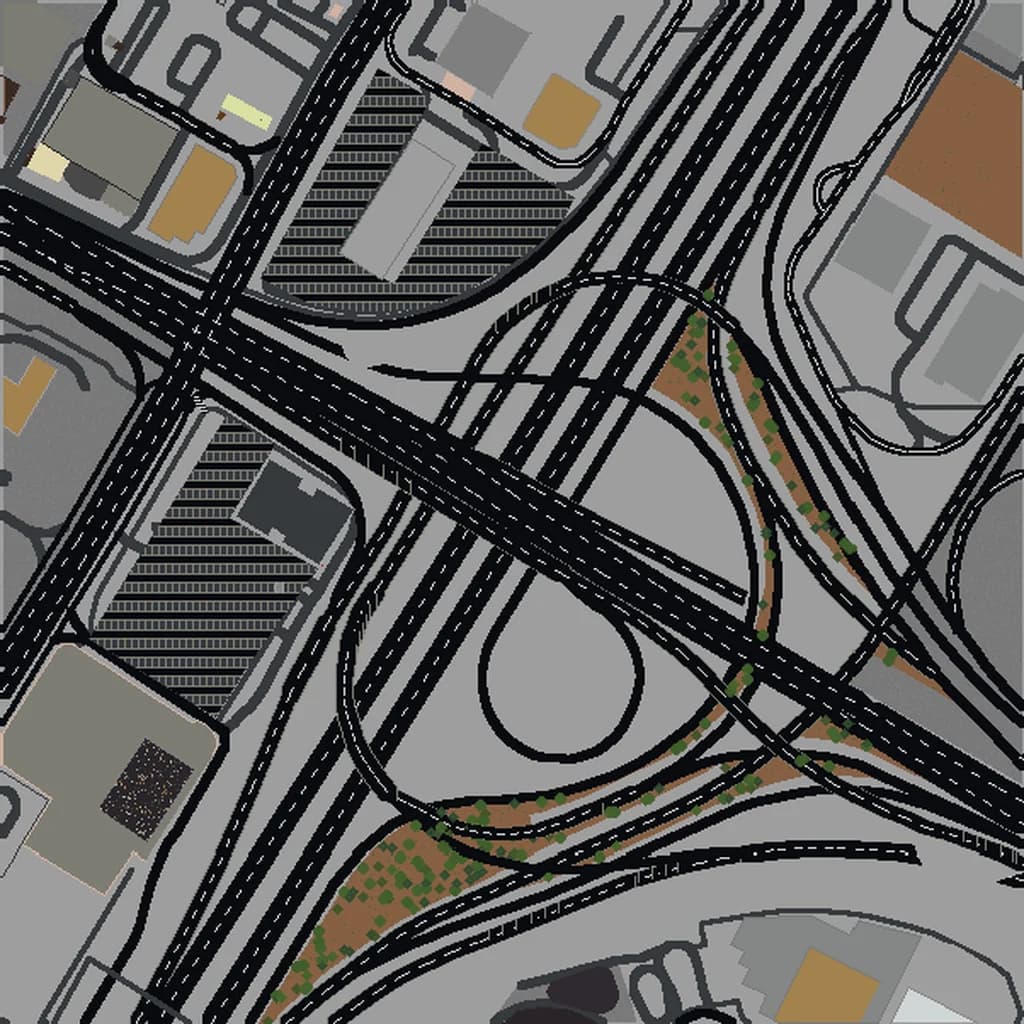
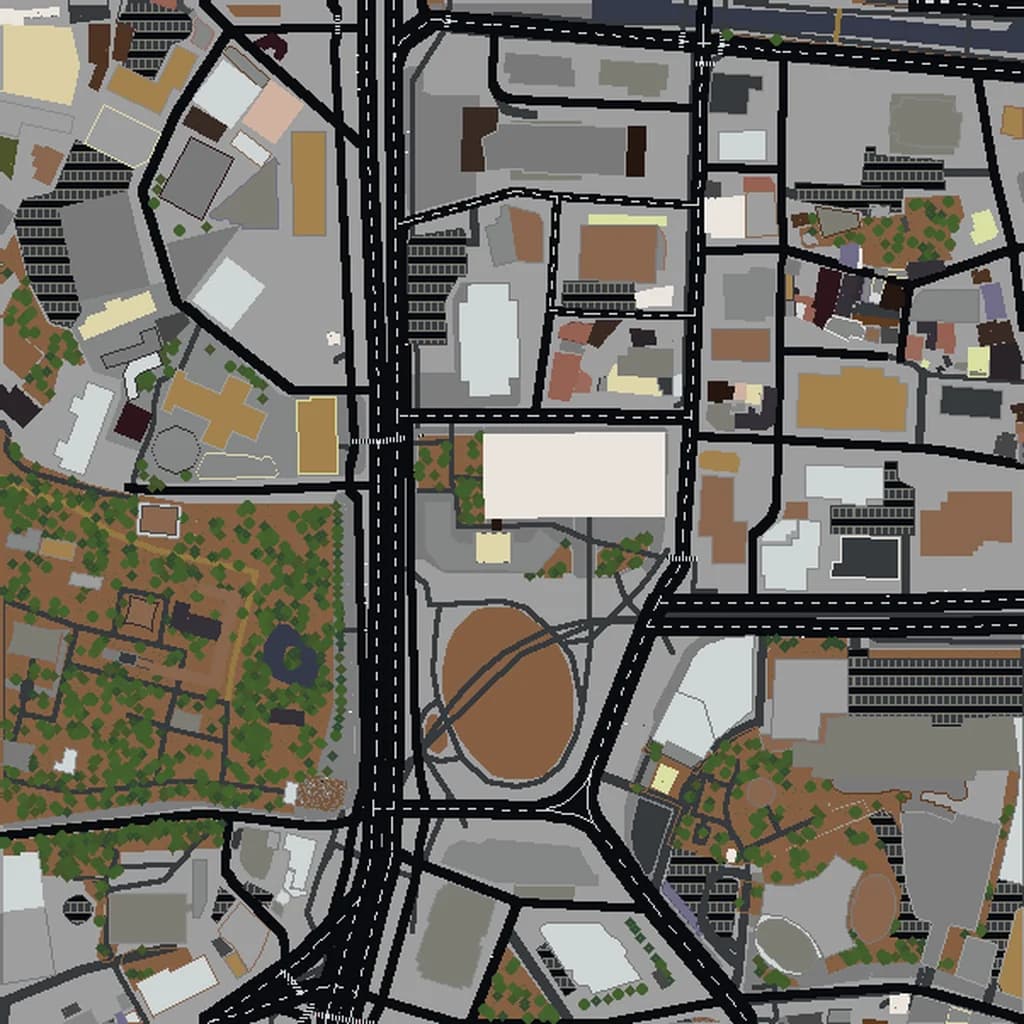
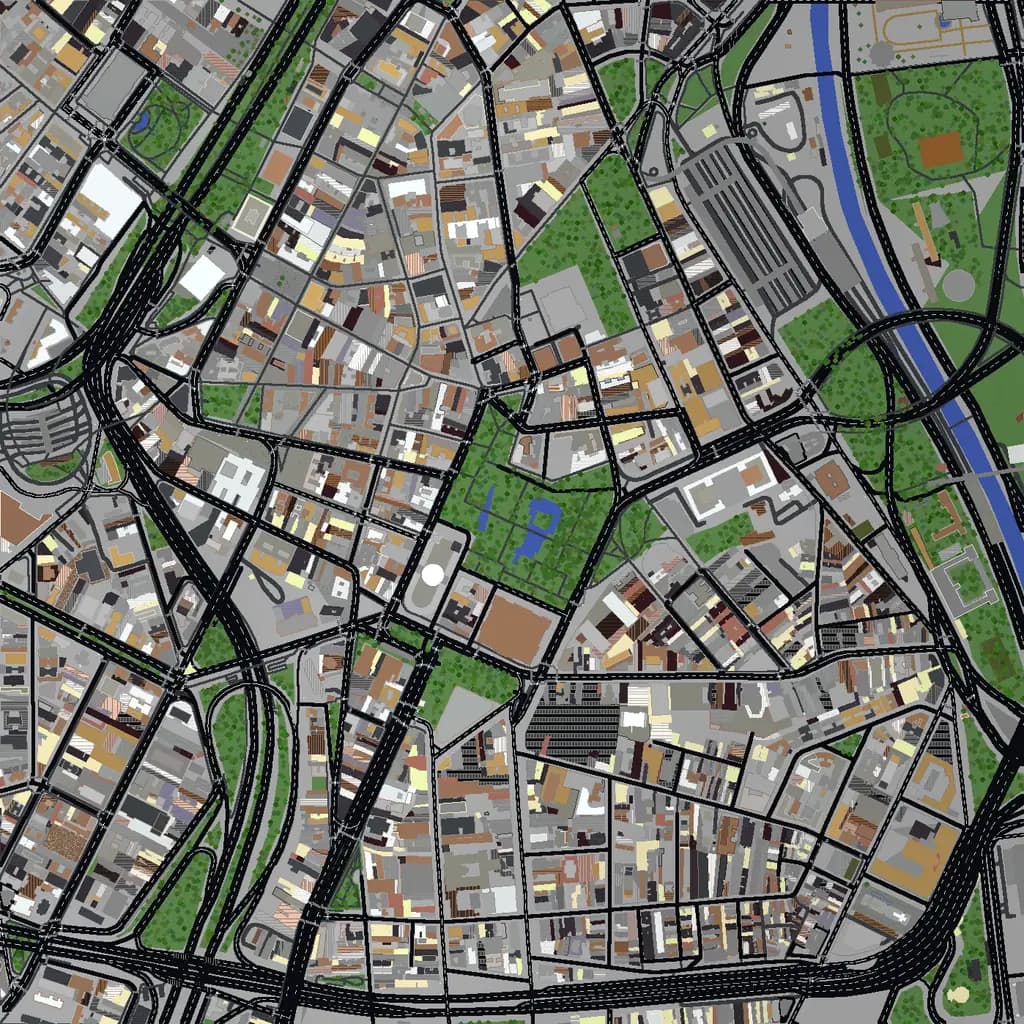
On Map2Minecraft you pick the edition before the world generates, so the file you download opens directly on your platform: a Java .zip save or a Bedrock .mcworld. You see a free 3D preview of the world either way before you pay.
Ease of Installation
Bedrock Edition: Simpler
Bedrock's .mcworld format is designed for one-click installation. On Windows, you double-click the file. On mobile, you tap it. Minecraft opens, imports the world, and it appears in your world list. It takes seconds and requires no knowledge of file system navigation.
Java Edition: Slightly More Manual
Java Edition requires you to locate your .minecraft/saves folder and place the extracted world folder there. It is not difficult — it takes about two minutes — but it does require basic familiarity with your file system. Our complete import guide walks you through every step.
For casual players or those who are not comfortable navigating file directories, Bedrock's one-click import is a clear advantage.
Performance and Render Distance
When exploring large real-world maps like New York or Tokyo, performance matters. You want to see as far as possible to appreciate the city layout.
Java Edition
Java Edition's performance depends heavily on your hardware and whether you use optimization mods. Vanilla Java can be demanding on large render distances. However, with mods like Sodium (Fabric) or OptiFine (Forge), you can dramatically improve frame rates and push render distances to 24-32 chunks on mid-range hardware. For exploring large map worlds, these mods are highly recommended.
Bedrock Edition
Bedrock is built on a C++ engine that is generally more performant than Java's default renderer. On equivalent hardware, Bedrock typically achieves higher frame rates and supports longer render distances out of the box. The chunk loading is also smoother, which is noticeable when flying over a large city world. On mobile devices, Bedrock is optimized to run well within the device's constraints.
Winner for performance: Bedrock, unless you are willing to install Java mods.
Exploration Features
Spectator Mode
Java Edition's spectator mode is a game-changer for exploring real-world maps. You can fly freely through the world, pass through walls and terrain, and move at adjustable speeds. This is perfect for getting aerial views of a city, swooping through streets, and exploring without worrying about falling or mobs. Activate it with /gamemode spectator.
Bedrock Edition has a more limited spectator mode that was added later and lacks some of Java's polish. For pure exploration of map worlds, Java's spectator mode is significantly better.
Debug and Information Screens
Java Edition's F3 debug screen shows your exact coordinates, which is useful for navigating large real-world maps. You can use coordinates to find specific locations. Bedrock shows coordinates in settings but with less detail.
Winner for exploration: Java Edition.
Multiplayer and Sharing
Bedrock Cross-Play
If you want to explore a real-world map with friends on different platforms, Bedrock is the clear choice. A player on Xbox, a player on Switch, and a player on a phone can all join the same world through Xbox Live. This cross-platform multiplayer is Bedrock's strongest advantage.
Java Multiplayer
Java multiplayer requires all players to be on PC and uses a different server system. You can host a LAN world for friends on the same network, or set up a dedicated server. There is no cross-play with Bedrock.
For a classroom setting or group exploration of a city like Rome, Bedrock's easy cross-platform multiplayer is valuable. For a group of PC gamers, Java's server options are more flexible.
Modding and Customization
Java Edition
Java has the most extensive modding ecosystem in gaming. For real-world map exploration, useful mods include:
- Sodium/OptiFine — performance optimization and shaders.
- JourneyMap or Xaero's Minimap — in-game maps that help with navigation.
- WorldEdit — modify the world in-game if you want to add or change features.
- Shader packs — make real-world maps look stunning with realistic lighting, water, and shadows.
Loading a Map2Minecraft world of Venice with a shader pack installed is a genuinely beautiful experience.
Bedrock Edition
Bedrock supports add-ons and behavior packs, but the ecosystem is smaller and more constrained. Some texture packs and simple shaders are available through the Marketplace or third-party sources, but the depth of customization does not match Java.
Winner for modding: Java Edition, by a wide margin.
World File Size and Compatibility
Map2Minecraft generates both formats from the same source data, so the geographic content is identical. However, file sizes differ slightly — Bedrock's LevelDB format tends to produce somewhat smaller files than Java's Anvil format for equivalent worlds.
Both formats are forward-compatible, meaning worlds generated today will work in future Minecraft updates. Minecraft automatically upgrades world data when you load a world in a newer version.
Our Recommendation
Here is the simple decision framework:
- Choose Bedrock if: you play on console or mobile, you want the easiest installation, you want to explore with friends across different platforms, or you want the best out-of-the-box performance.
- Choose Java if: you play on PC, you want spectator mode for exploration, you plan to install mods or shaders, or you want the most detailed control over the experience.
- Want both? Generate the same area once in each format. Many players use Java for solo exploration with shaders and Bedrock for showing the world to friends on console.
No matter which edition you choose, the world itself — the streets, buildings, parks, and waterways pulled from real map data — is the same. The difference is in how you experience it. Pick the edition that fits your platform and play style, and start exploring.
Ready to generate a world? Start here, or browse our list of the best cities for inspiration.
Real city maps to try